Tutorials • Random
Exporting a database via PhpMyAdmin.
Learn how to export a database using phpMyAdmin. Follow the necessary steps to access, select, and download the desired database.
Views 1354Updated 3 aniPublished on 14/11/2022by Cătălin A.
Introduction
- The phpMyAdmin utility provides the option to export a database from the SQL server;
Requirements
- The user and password associated with the database for which we want to perform the export;
- For example, in the ISPConfig panel, we will be able to create a database with an associated user by following the tutorials:
Creating a database in the ISPConfig control panel
Creating a MYSQL user in the ISPConfig control panel
Steps to follow
- In the hosting packages with cPanel and Plesk control panels, logging in to PhpMyAdmin is done directly from the administration panel.
- Instead, in the case of ISPConfig or Webuzo panels, the PhpMyAdmin plugin in the panel will be accessed, which will redirect to a login page in the database management interface;
- On the page that will be displayed, it will be necessary to enter the SQL user and their password in order to view the databases assigned to that user, after which the "Go" button is pressed.

- Once entered into the interface, the databases assigned to the user will be viewable in the left-hand column;

- To export a database to your personal computer, select the desired database from the list, then from the menu at the top of the page, press the "Export" button;
- Next, we will click the Go button

- On the page that will be displayed, press the "Go" button without making any other changes.
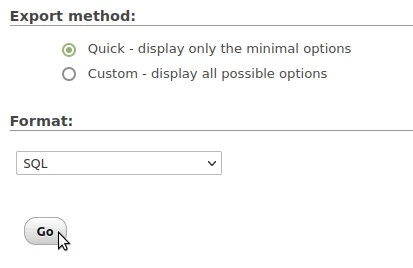
After pressing the button, the download of the database SQL file will begin directly in the browser.