Tutorials • Plesk
Setting up the web firewall in the Plesk administration panel
The Plesk panel allows you to start, stop, or set custom rules in the web firewall of the hosting account.
8
Views 1594Updated 1 anPublished on 19/12/2019by Cătălin A.
Introduction
This article explains the steps that need to be followed to start, stop, or set specific web firewall rules in a Plesk hosting account.
Requirements
- an active Plesk hosting account
- login data in the panel
Steps to Follow
- after logging into the Plesk administration panel, select "Web Application Firewall" from the displayed interface
- on the page that will appear, the firewall can be set in three modes:
- ON, ON (default setting). In this mode, each request to the server will be checked against a set of rules. If the request is not considered malicious, it is forwarded to the site; however, if it is deemed malicious by the imposed filters, the event is logged in an error log, and the request to the site is stopped with an error code.
- OFF, stopped. No requests to the site will be checked.
- Detection only, in detection mode only. In this mode, each request coming to the server will be checked against a set of rules. Regardless of whether the request is deemed malicious or not, it will reach the site and will be saved in an error log only if it is considered malicious.
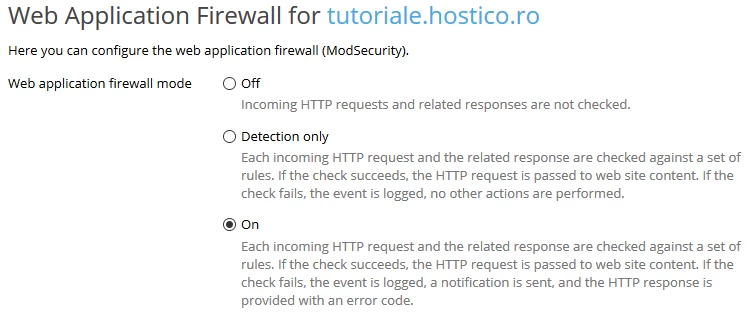
- when accessing "Error Log File", the error logs transmitted by the firewall will be displayed

- On this page, you can view selected logs in real-time by activating the "Start real-time updates" option and selecting the services for which you want to activate the option from the box located in the top-right corner.

- the web firewall allows the deactivation of certain individual rules, which may conflict with the proper functioning of a site. Usually, these rules come in the form of IDs (identifiers) that will be present in the error log in the form [id "340003"]. To ignore a rule, you will enter its ID in the "Security rule IDs" field.

- entire sets of rules related to certain situations, such as Brute Force attacks, Backdoor, or rules related to well-known applications like WordPress, Drupal, Joomla, etc., can also be disabled by selecting the group from the "Active" field and moving it to the "Deactivated" field
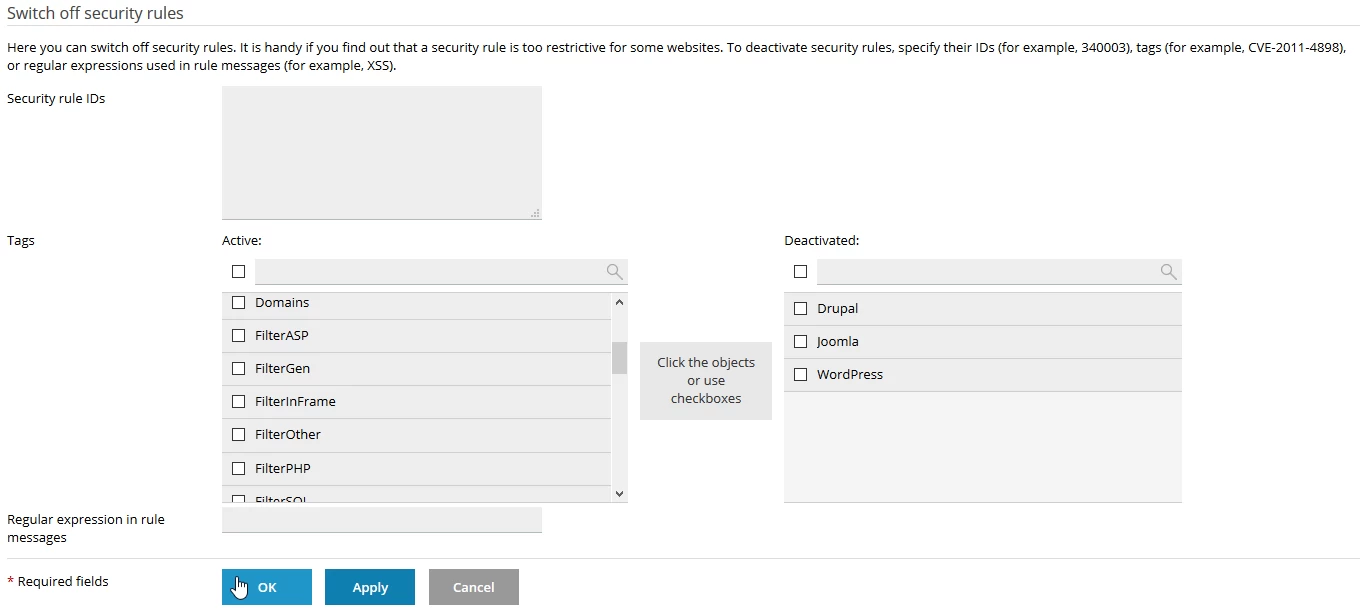
- For implementing the changes, press the "OK" button located at the bottom of the page, after which a confirmation message will be displayed.
