Tutorials • cPanel
Changing the language used in the cPanel interface
Find out how to change the cPanel interface language. Follow the simple steps to select your desired language and successfully confirm the change.
Views 1191Updated 4 aniPublished on 16/01/2019by Sebastian S.
Introduction
- cPanel offers the ability to choose from multiple languages to be used in the user interface.
Requirements
- To change the language, we will need the cPanel login credentials, received in the administration email.
Steps
- First, we will log in to the cPanel control panel.

- Once we have logged in to the control panel, we will go to the Preferences section and click on Change Language.

- In the next window in the Select a Language field, we will choose the desired language and click on the Change button.
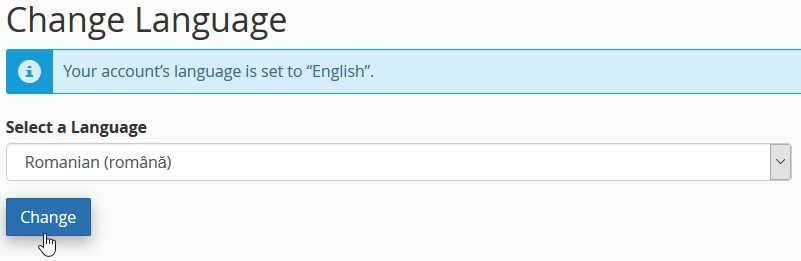
- If everything went smoothly, we will receive a confirmation message in the form: Your account language is set to „Romanian”.
- From this point, the language used in the interface will be the selected one