Tutorials • Commercial
Domain registration
In this tutorial, you will learn how to place an order for domain registration from your Hostico client account.
5
Views 2422Updated 1 anPublished on 28/09/2017by Mark D.
Introduction
In this tutorial, you will learn how to place an order for domain registration from your Hostico client account.
Requirements
- A Hostico client account. If you do not have an account, you can follow the steps in the tutorial Creating a Hostico client account.
Steps
- Log in to your client account and access the Domains → Register a new domain section.
- Enter the desired domain name in the indicated field and press the Search button to check availability.
- If the domain is available, you will see the message: "domainname.extension is available!"
- If you want to register the domain, click on the Add to cart button. To register the same name with multiple extensions, click the Add button under each desired extension.

- If the domain is already registered, you will receive the message "The entered domain is already registered with us". In this case, you can check the availability on other extensions or choose a different name.
- Click the Complete Order button.
- In the Nameservers section, enter the nameservers of the hosting provider. If you do not know them, you can use the default values: ns1.hostico.ro, ns2.hostico.ro, ns3.hostico.ro, and ns4.hostico.ro. These can be changed later from the client account.
- Click on the Continue button.
- Optional, select a hosting package if the domain is not associated with an active package.
- In the next step, choose the period for which you want to register the domain: 1, 2, 3, or 5 years.
- Check the total amount displayed in the Order Summary section and click the Complete Order button.
- Check the billing details and select the payment method. Accept the Terms and Legal Conditions to complete the order.
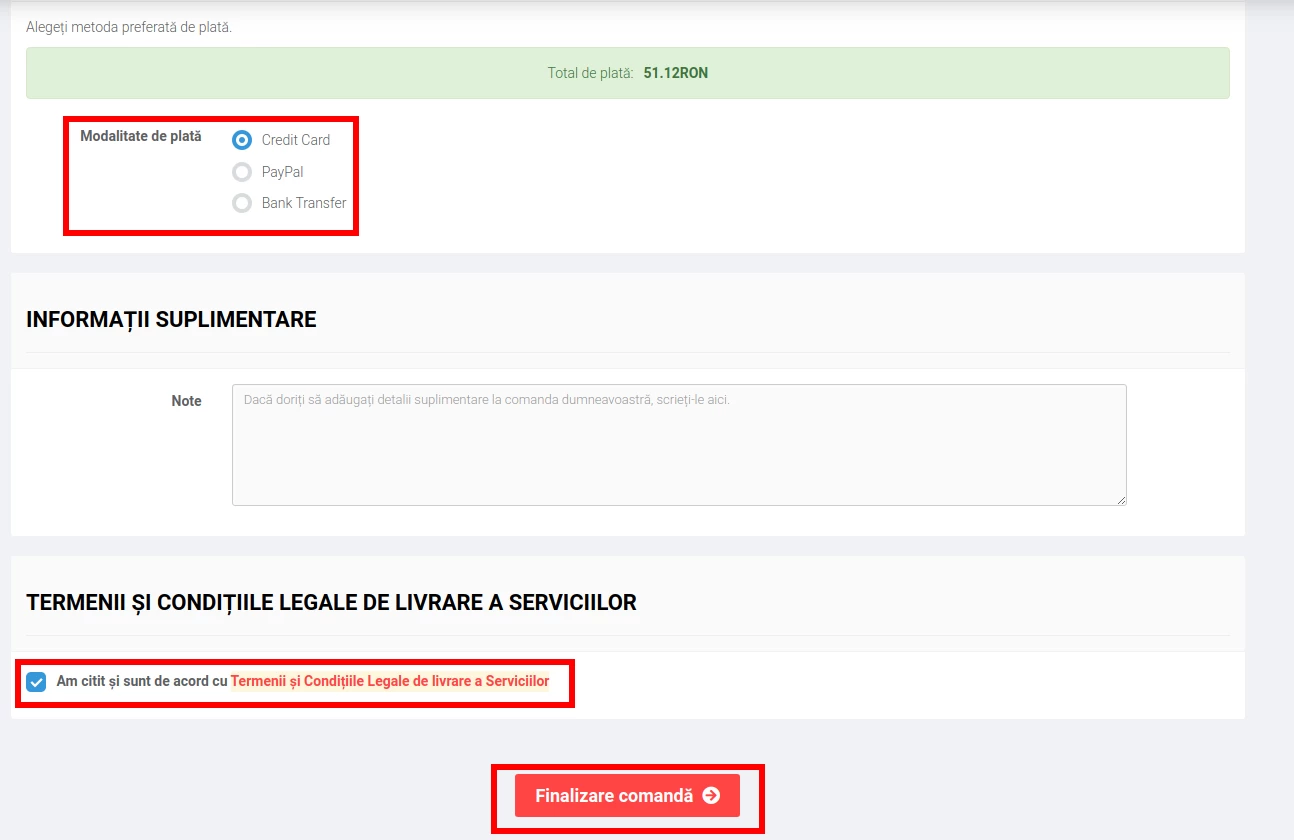
- Press the Complete Order button. A proforma invoice will be generated automatically. After payment is received, the order will be activated, and the domain will be registered. Confirmations will be sent via email.
Note
- The domain registration order can also be placed directly through the Hostico website, where the extension prices are also displayed.
- Domain registration does not guarantee its reservation until payment is received. The domain remains available to anyone until the actual registration.
- Registered domains require association with a hosting account to be functional.
- After registration, it may take several hours for the domain to become fully functional, due to the DNS propagation period.
- Detailed information about extensions is available at: Domain Terms.