Tutorials • Apps
Clear cache and history in Chrome browser
Learn how to delete your history and cache in Google Chrome using the Ctrl+Shift+Delete key combination. The tutorial includes simple steps and applicability in other browsers.
38
Views 7317Updated 5 aniPublished on 08/01/2018by Florin P.
Introduction
- In this tutorial we will show you how to delete the history in Google Chrome browser.
Requirements
- Google Chrome browser.
Steps
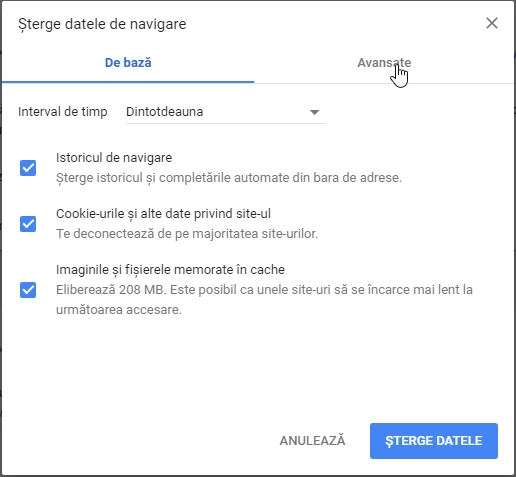
- We will simultaneously press the Ctrl+Shift+Delete keys in the browser, then in the following page click on Advanced.
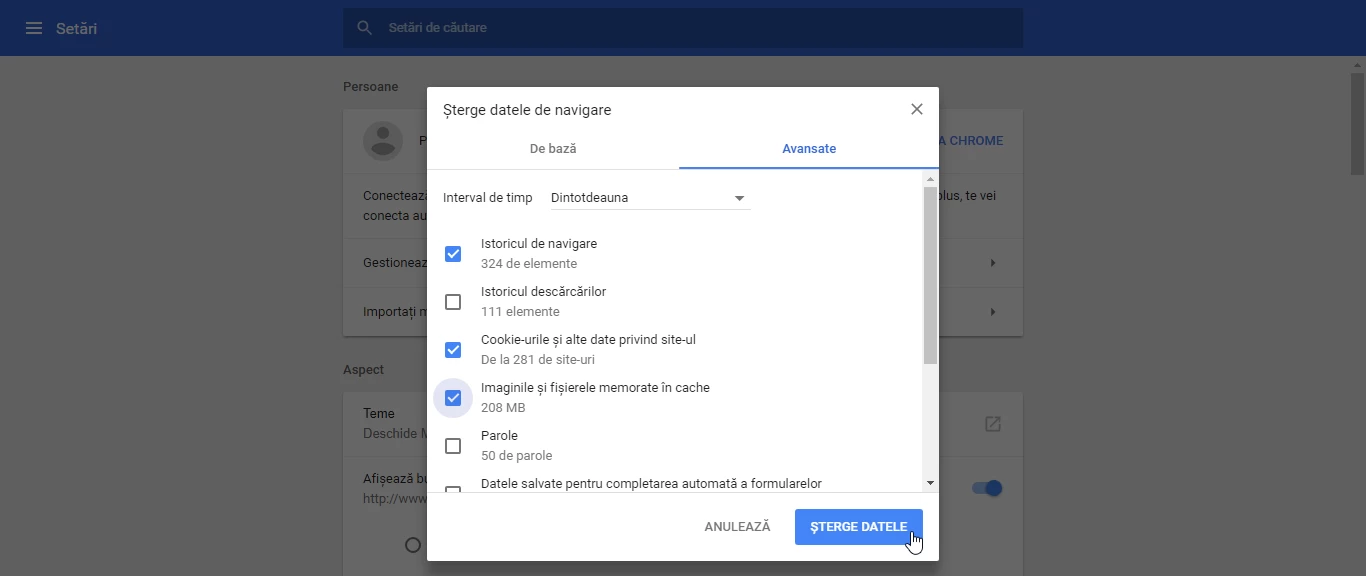
- We will check the boxes in the image and then DELETE THE DATA.
The key combination can also be used in browsers: Microsoft Edge, Firefox, Opera, and Internet Explorer to clear the cache and browser history.