Tutorials • Email
Automatic email account setup in Outlook
Learn how to automatically configure an email account in Outlook with this step-by-step guide. Follow the instructions to complete the process quickly and easily.
1
Views 2564Updated 2 aniPublished on 15/02/2018by Florin P.
Introduction
- In this tutorial, we will show you how to automatically set up your email account in the Outlook email client.
Requirements
- Email address and password, Outlook email client.
Steps
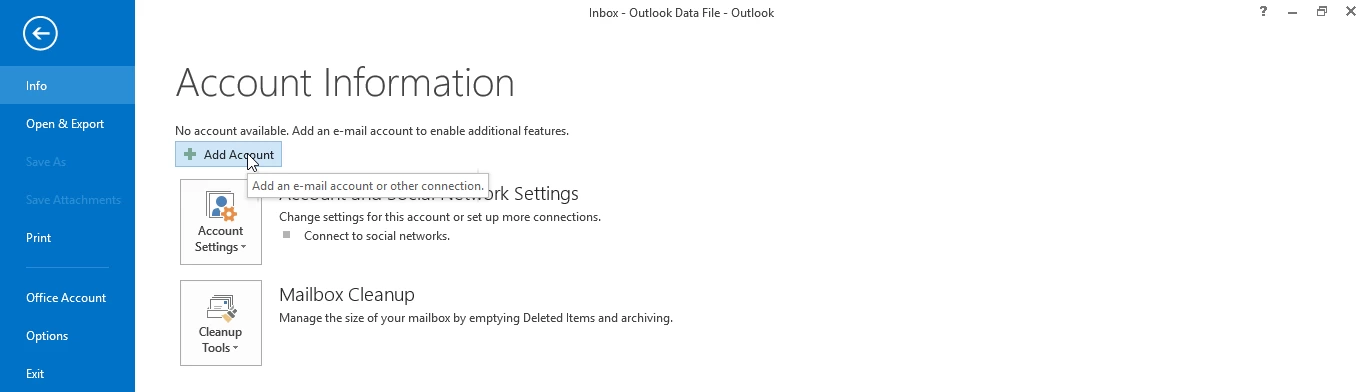
- We open the Outlook Email Client, then click on File and then click on Add Account.

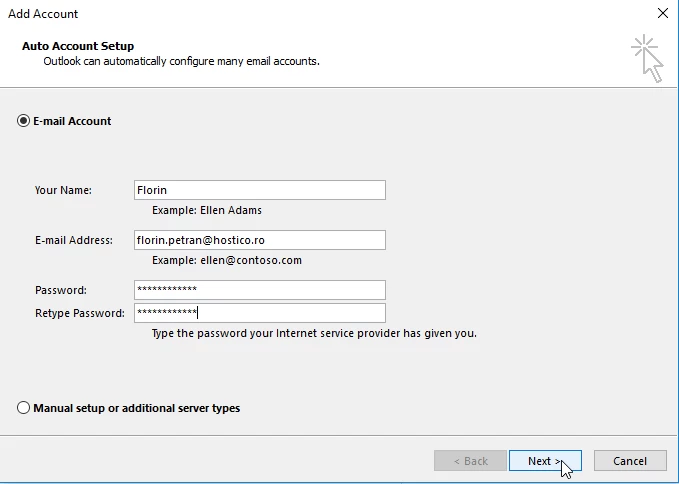
- In the new window that will open, we will fill in the name for the email account (the name that will appear as sender), the full email address and its password, click Next.
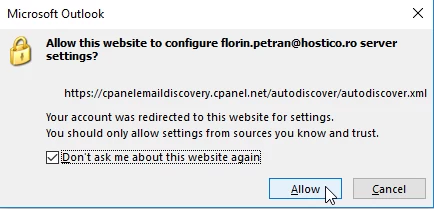
- We will check 'Don't ask me about this website again' and then click Allow in the notification window below.
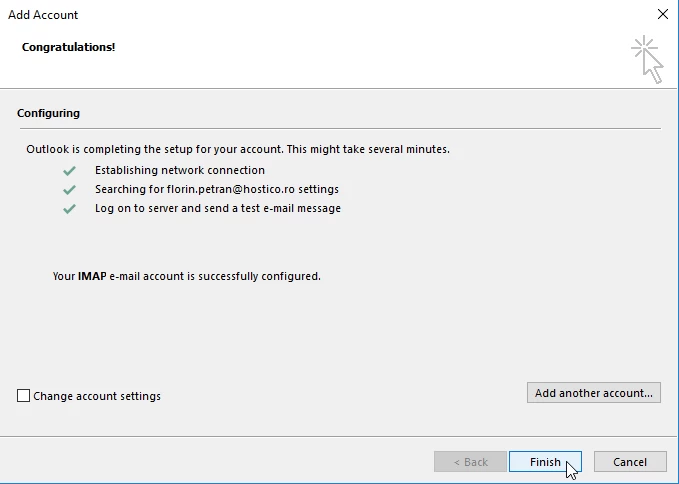
- The settings are to be tested by the email client.
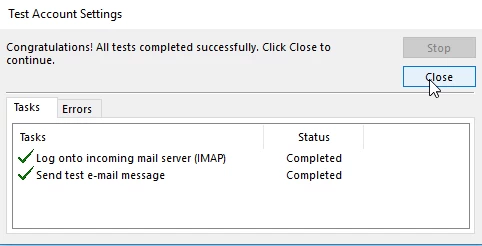
- After the settings have been tested we can close this window and complete the email account setup by clicking on Finish.