Tutorials • cPanel
Changing the password of an email address in cPanel
Learn how to change the password of an email account in cPanel, step by step, to ensure the security of your account.
Views 1784Updated 1 anPublished on 11/07/2018by Florin P.
Introduction
In this tutorial, we will show how to change the password of an email account from the cPanel administration panel.
Requirements
The login credentials for the cPanel administration panel.
Steps
- We will log in to the cPanel account, and then go to the Email Address section, click Email Accounts

- In the new page that will open, click on Password and Authentication next to the email account whose password we want to change.

- This is where we will enter the password we want to configure for this email account or use the password generator.
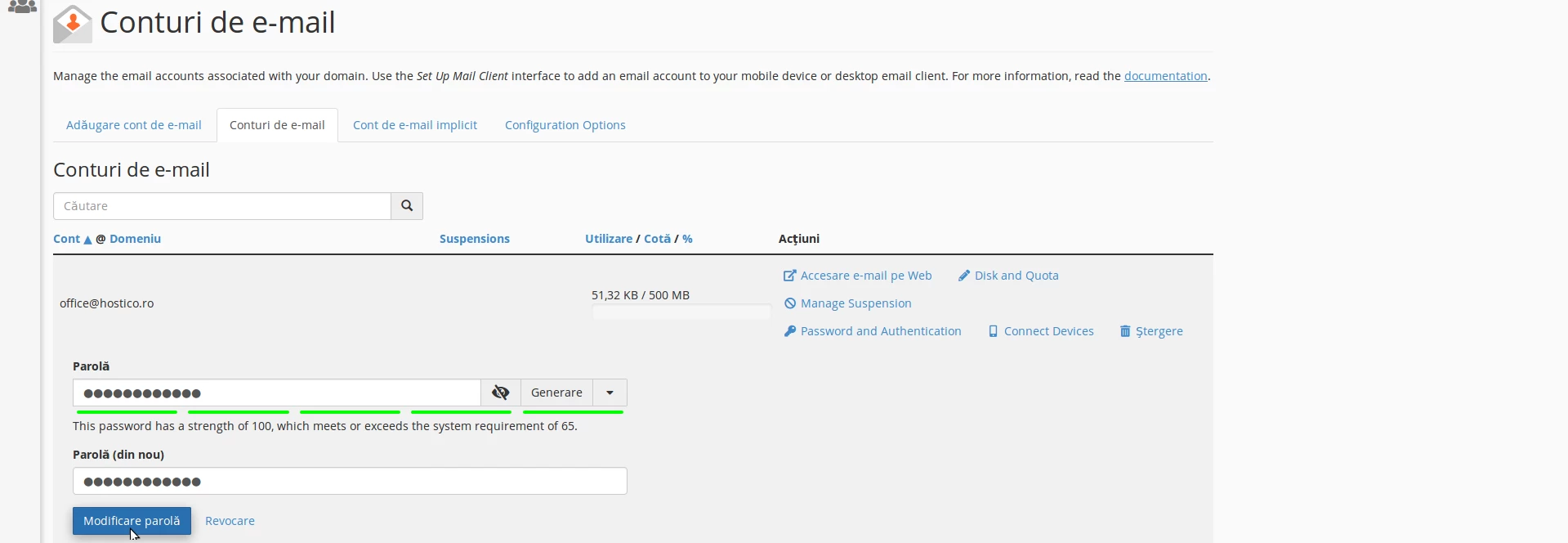
- After entering the desired password, we will click on Change password and the system will confirm the change with the message below.
