Tutorials • Email
Automatic email account setup in Thunderbird
Learn how to automatically set up an email account in Thunderbird, step by step, to efficiently manage your electronic correspondence.
1
Views 2021Updated 2 aniPublished on 06/02/2018by Florin P.
Introduction
- In this tutorial we will show you how to automatically set up your email account in the Thunderbird email application.
Requirements
- The Thunderbird application and a functional email address.
Steps
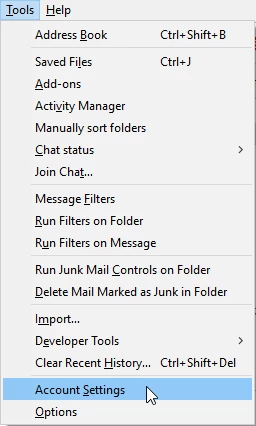
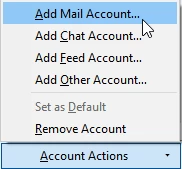
- We open the Thunderbird application, click on Tools, then Account Settings, and at the bottom click on Account actions and click on Add Mail Account.
- Here we will complete the account name for email, e.g. Office (the name that will appear to the sender), the full email address e.g: office@hostico.com and its password.
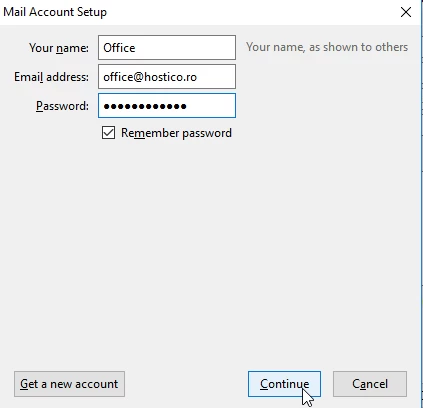
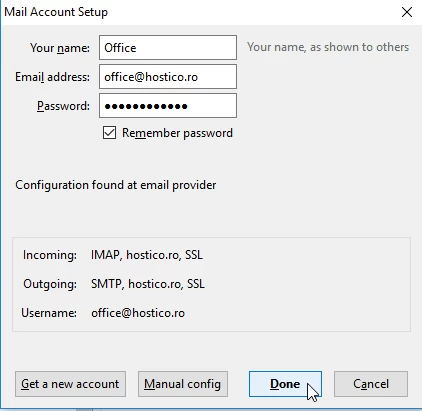
- Click on Continue and then click on Done.