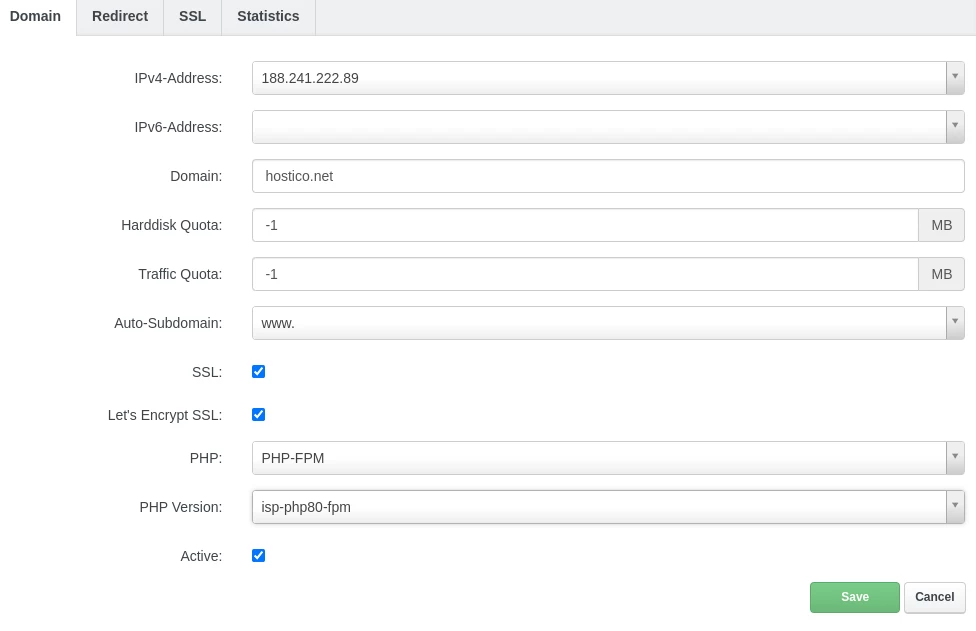
Adding a Website type domain in the ISPConfig control panel.
In this article, we will present the necessary steps to add a Website type domain (main domain) in the ISPConfig control panel.
Introduction
- The ISPConfig control panel allows for the addition of an unlimited number of website-type domains.
- Website-type domains in the ISPConfig panel are primary, standalone domains associated with a user and their own Linux directory.
Requirements
- The ISPConfig panel administration data received on the email associated with the Hostico account when the VPS was activated.
Steps to follow
- First, we will connect to the ISPConfig control panel using one of the access addresses: https://SERVERNAME:10200 or https://IP_SERVER:10200 or https://DOMAIN.XX:10200

In the navigation bar of the panel, we will click on the Sites button.

Next, we will click on the Add new website button.

In the page that will load, we will fill in the fields as follows:
-IPv4-Address: We select the IPv4 address we want to associate with the domain;
-IPv6-Address: We select the IPv6 address we want to associate with the domain. This step is optional;
-Domain: We complete the domain name;
-Harddisk Quota: In this field, we can specify the space limit associated with the domain if we wish. For unlimited space, the value -1 will be set;
-Traffic quota: In this field, we can specify the traffic limit associated with the domain if we wish. For unlimited traffic, the value -1 will be set;
-Auto-Subdomain: If we want to create an automatic subdomain of the type www or not;
-SSL: It should be checked for automatic generation of an SSL certificate;
-Let's Encrypt SSL: It should be checked for automatic generation of an SSL certificate;
-PHP: It should remain selected as php-fpm;
-PHP Version: The PHP version we want to use on this domain will be selected;
-Active: We leave it checked if we want the domain to be configured and active/accessible;
To complete the setup, we will click on the Save button at the bottom of the page.